This is how to debug an Android app wirelessly, without a USB cable. It assumes developer mode is turned on on the physical Android device. There seems to be a button in Android Studio to set this up, but it has never once worked for me, so I always do it this way. If there’s a better approach, I’d love to hear it.
Pairing
Open the wireless debugging screen,
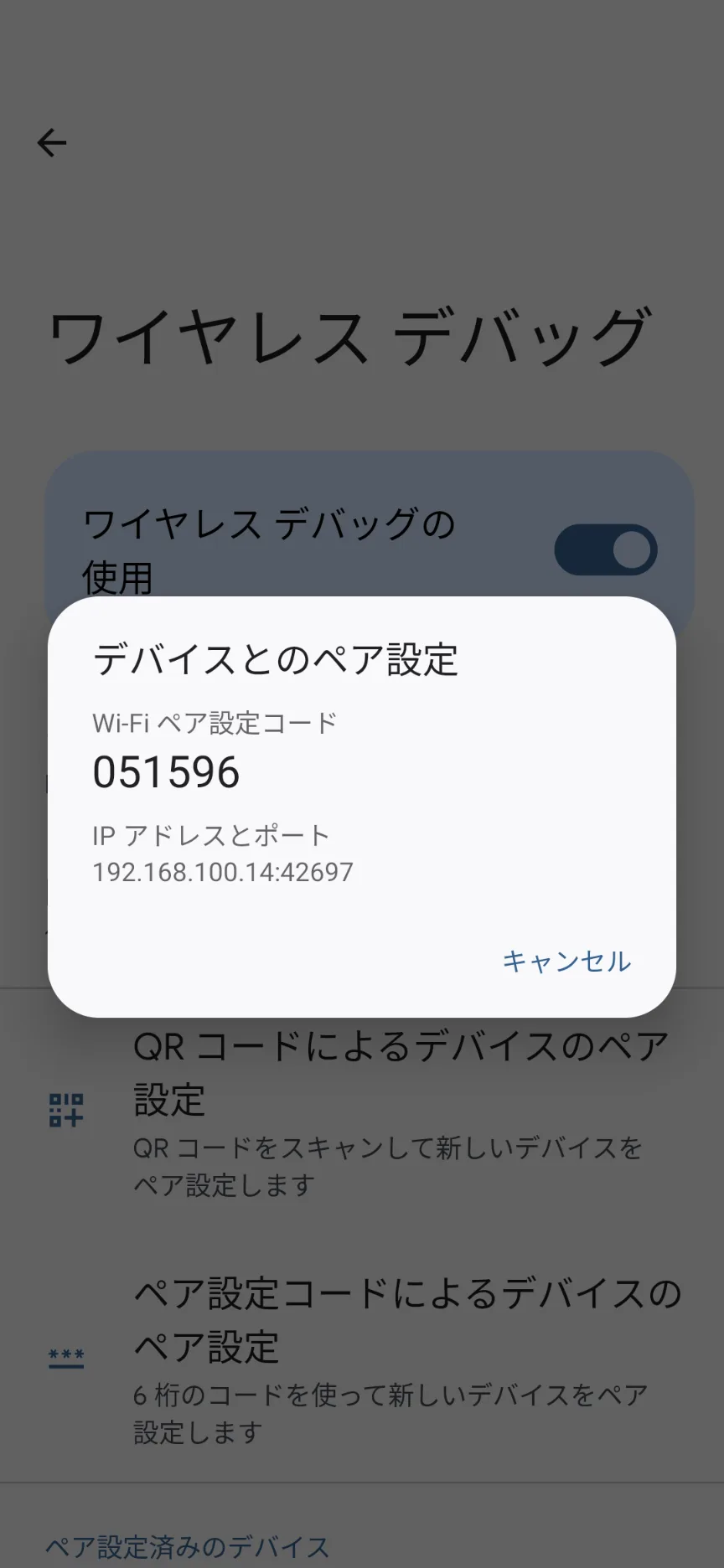
and run the following command on the PC side.
$ adb pair 192.168.100.14:39929

>> Enter pairing code: 431596 <- enter the number shown on the Android device here
   Successfully paired to 192.168.100.14:39929 [guid=adb-03rf24224242237-n62342ss]
Connecting
$ adb connect 192.168.100.14:39037

>> connected to 192.168.100.14:39037
The Android device chimes at this point.
Checking connected devices
$ adb devices

>> List of devices attached
   192.168.100.14:39037	device <- if it shows up like this, you're good